Topology and Edge Flow
Before this:Edit Mode Basics, Modifiers Introduction
Standards (3)
GD.17.4Art & Design Fundamentals
Apply elements and principles of art and design to develop game environments, characters, and props for use in interactive 3D games.[^12]AV.17.83D Animation Fundamentals
Design and model props, vehicles, and characters to demonstrate core animation principles (e.g., weight, timing, visual storytelling); develop and apply rigging systems to enable animation using keyframing and/or match moving.[^10]4.3Industry-Standard Technology
Use industry-standard hardware, software, and technology to complete tasks accurately, efficiently, and safely.
What you’ll be able to do
- Define what makes a mesh manifold, and spot when it isn’t
- Identify n-gons and poles and explain why they cause problems
- Read a shading artifact and trace it back to a topology cause
- Use Blender’s built-in tools to find broken geometry automatically
Read
What “topology” means here
Topology is how a mesh’s vertices, edges, and faces connect to each other. Two models can have the exact same silhouette and completely different topology underneath, and only one of them will hold up once it’s shaded, deformed, or exported.
For a static background prop, messy topology can sometimes get away with it. For anything that will be UV unwrapped, subdivided, or animated, topology is the difference between a mesh that behaves and one that fights you at every later step. Everything from here through the rest of this course assumes clean topology, so this is the point to build the habit of checking for it.
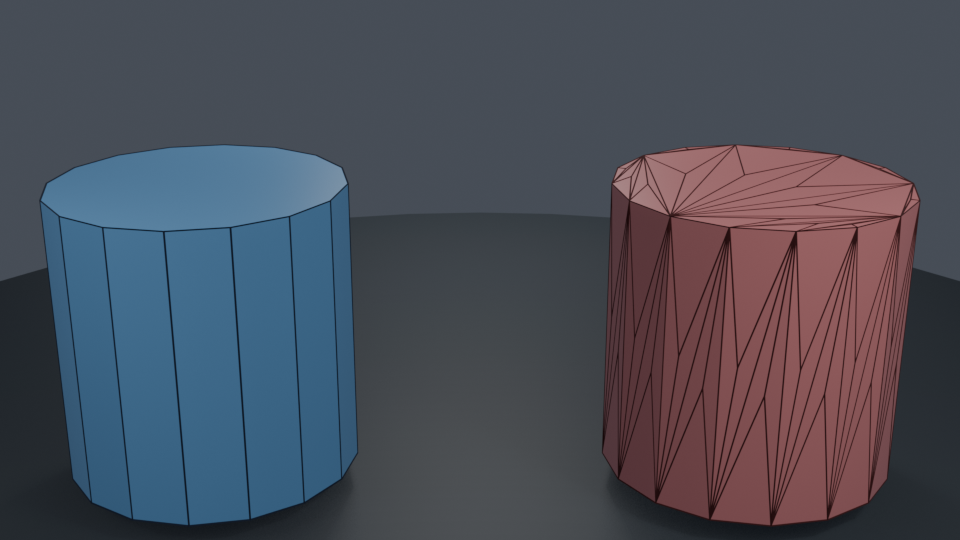
Clean quad topology (left) maintains predictable edge loops and deforms evenly, while messy triangulation (right) creates uneven density and shading problems despite sharing the exact same silhouette.
Manifold, defined precisely
A mesh is manifold when every edge is shared by exactly one or two faces, and the surface behaves like something you could theoretically build out of a single sheet of material without tearing or passing through itself.
Non-manifold geometry breaks that rule. The two most common causes:
- An edge shared by three or more faces: Two separate wings of a mesh accidentally welded together at one edge, or a T-junction face.
- Internal or floating faces: A face trapped inside the mesh where nobody will ever see it, left behind by an extrude that went the wrong way or a Boolean that didn’t fully clean up.
Loose vertices and edges that aren’t part of any face at all get flagged the same way, since they don’t belong to a coherent surface either.
This isn’t a cosmetic problem. Game engines check for manifold geometry when a model is imported, and non-manifold meshes are a common cause of import errors, broken collision, and crashes. Fixing it here is cheaper than fixing it after export.
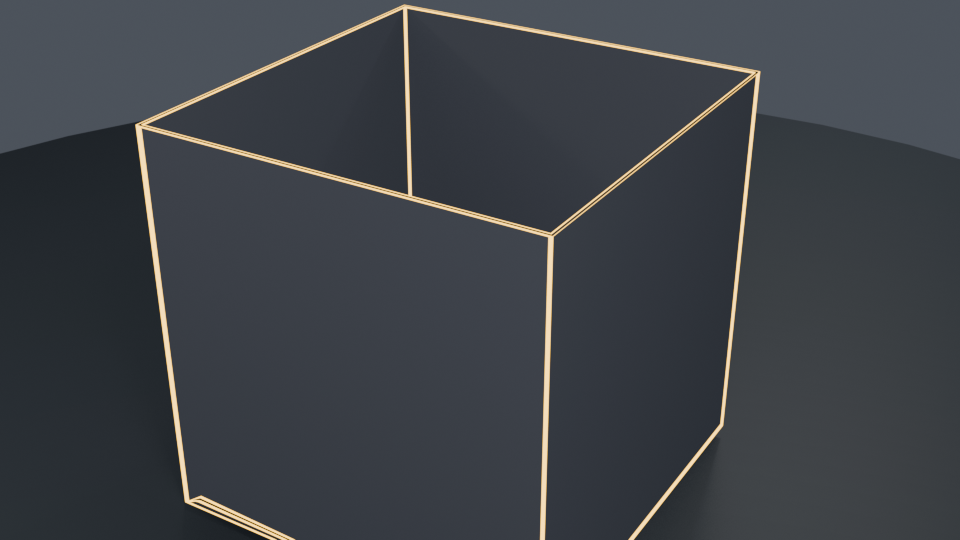
Select → All by Trait → Non-Manifold in Edit Mode highlights broken geometry in orange, immediately exposing unsealed boundary holes and internal T-junction edges.
Finding it
Blender will find non-manifold geometry for you. In edit mode: Select → All by Trait → Non-Manifold. Whatever lights up is the problem.
Two dependable fixes:
- Mesh → Clean Up → Delete Loose removes stray vertices and edges that aren’t attached to anything.
- M → Merge by Distance collapses vertices that are sitting on top of each other, which is the single most common cause of non-manifold edges after moving geometry around.
If a hole is open and needs sealing rather than merging, select the boundary loop and press F to fill it, or use Face → Grid Fill for a cleaner quad result than a simple fill gives you.
N-gons
An n-gon is any face with five or more sides. Blender allows them, but they cause two specific problems: they don’t subdivide predictably, so a Subdivision Surface modifier can produce visible pinching or flat spots across an n-gon, and their shading can look subtly wrong even without subdivision, because the face isn’t a simple flat plane the way a triangle or quad is guaranteed to be.
The target for anything that needs to deform or subdivide cleanly is quad-dominant topology: mostly four-sided faces, triangles kept to a minimum and placed somewhere they won’t be seen deforming, n-gons avoided entirely in any area that will subdivide or animate.
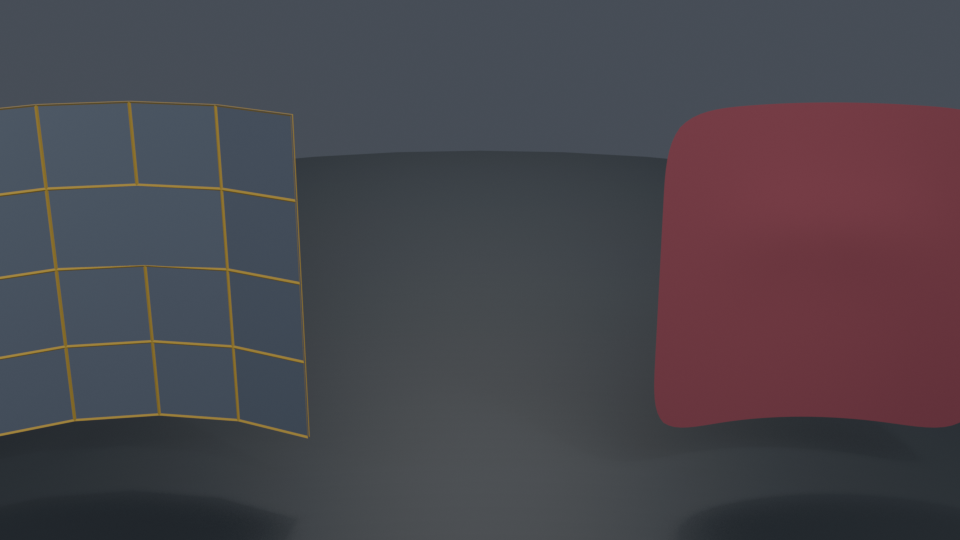
An n-gon on a curved surface (left) lacks internal edge direction, causing planar distortion and visible surface pinching when Subdivision Surface is applied (right).
Poles
A pole is a vertex where more or fewer than four edges meet. Three-edge poles create a small zone of unusually dense geometry when subdivided; five-or-more-edge poles create the opposite, a zone that’s too sparse, and that sparse zone is what produces a visible pinch or dimple on a smoothed surface.
Poles aren’t always avoidable, and a small number in a flat, non-deforming area usually causes no visible problem. What matters is keeping them away from two places: any area that will bend during animation (a pole sitting right at a knee or elbow causes visibly uneven bending), and any area under heavy subdivision, where the density difference becomes obvious.
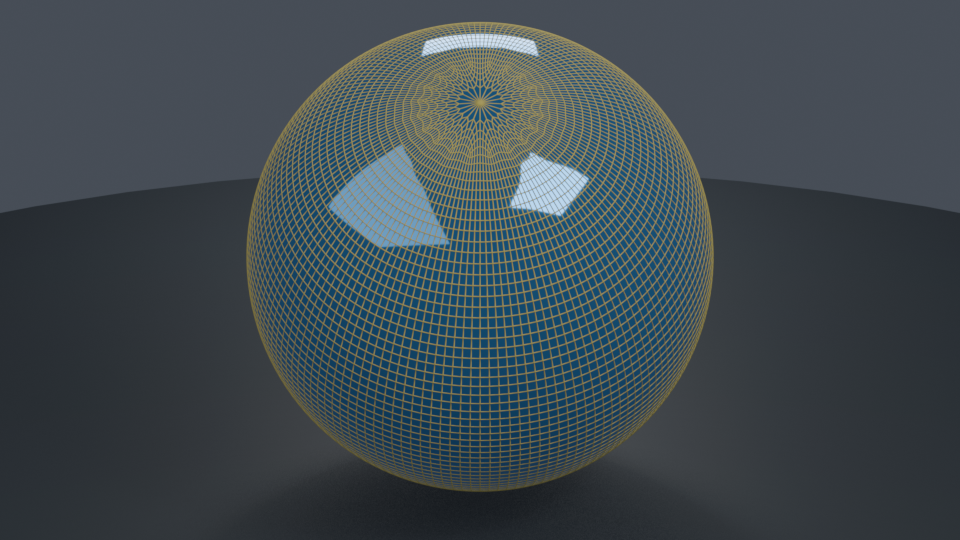
A 5-edge pole on a curved surface creates a localized density spike, generating a star-shaped pinch under subdivision and specular reflection.
Reading a shading error backward
A shading artifact on the surface is a symptom. The cause is almost always one of the things above:
| You see… | Check for… |
|---|---|
| A dark seam or crease that shouldn’t be there | Doubled vertices sitting on top of each other, or flipped normals |
| Pinching on a smoothed surface | A pole or an n-gon in that area |
| A flat or faceted patch on a curved surface | An n-gon disrupting the subdivision |
| The model looks inside-out in patches | Inconsistent face normals |
To check normals, enable Face Orientation in the viewport overlays dropdown. Correct faces show blue; anything showing red or pink is facing the wrong way and needs its normals recalculated (Shift + N → Recalculate Outside).
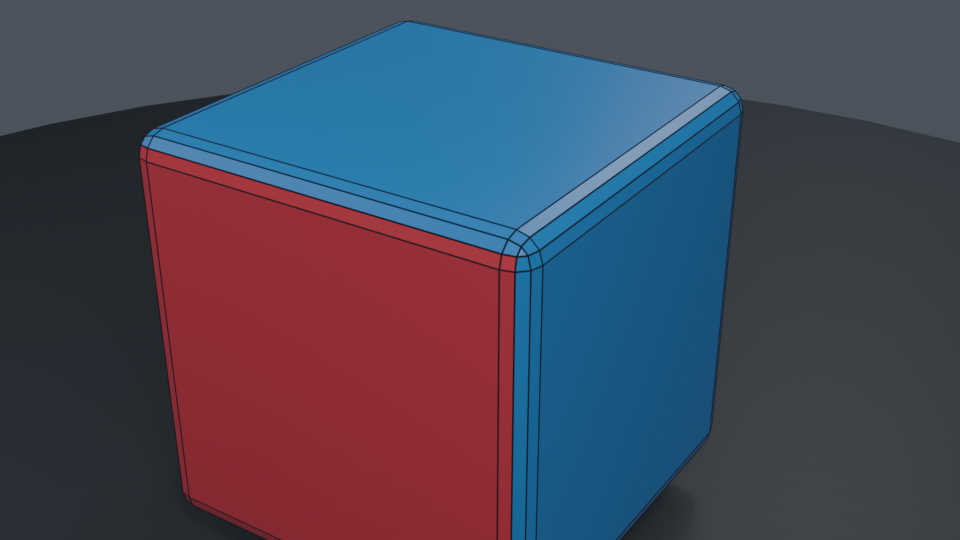
With Viewport Overlays → Face Orientation enabled, outward-facing polygons render solid blue, while inverted/flipped normals glow bright red.
The general order
Diagnose before you fix. Run Select Non-Manifold first, since a mesh with structural problems will make every other check harder to read. Then check for n-gons and stray poles in areas that matter. Then check normals. Fixing in that order means you aren’t chasing a shading error that was actually caused by something underneath it.
Quick Check
You notice a strange pinch in the middle of an otherwise smooth, subdivided cylinder wall. What are you most likely to find when you inspect that spot?
- A. A non-manifold edge shared by three faces
- B. An n-gon or a pole sitting right at that location
- C. Flipped face normals
- D. Too few total vertices in the entire mesh
Show answer
Terms
- Manifold — A continuous, watertight surface where every edge is shared by exactly one or two faces, with no self-intersections or internal geometry.
- Non-manifold — Geometry that violates topological rules, such as edges shared by three or more faces, open holes, or loose unattached vertices.
- N-gon — Any polygon face containing five or more vertices/edges.
- Pole — A vertex where more or fewer than four edges meet (3-valence, 5-valence, etc.).
- Quad-dominant topology — Mesh structure composed primarily of four-sided faces, ensuring clean subdivision and predictable deformation.
- Face Orientation — A viewport overlay that displays normal directions in real time (blue for exterior, red for inverted).
- Recalculate Normals (
Shift + N) — Automatically realigns face normals so that all polygons uniformly face outwards.
Next
- Topology Fix Challenge (
topology-fix-challenge)