Mood Boards and Reference
Standards (2)
10.3Visualization Techniques
Communicate and refine ideas through visual methods (e.g., diagrams, charts, mood boards, illustrations, wireframes, renderings, and storyboards).1.3Cultural & Historical Influences
Investigate historical achievements, accomplishments, and advancements by industry pioneers, innovators, inventors from diverse genres, regions, cultures, backgrounds, and experiences.
What you’ll be able to do
- Explain why professional artists build reference boards instead of working from memory
- Organize a board around primary form, secondary form, and material
- Build a reference board in Canva, and know what PureRef adds once you need it
- Call out specific materials the way a production artist would
Read
Nobody works from memory
Professional concept and prop artists gather reference before touching their tool, every time, without exception. This isn’t a beginner habit you outgrow. It’s how the work actually gets made, because your memory of what a hinge or a vent or a weathered handle looks like is vaguer and less accurate than an actual photo of one, no matter how many you’ve seen.
A reference board is a single organized place holding everything you’re pulling from for one piece: photos, other artists’ work, color, material, whatever informs the decisions you’re about to make. Built before modeling starts, and kept open the whole time you work.
Three layers, not one pile
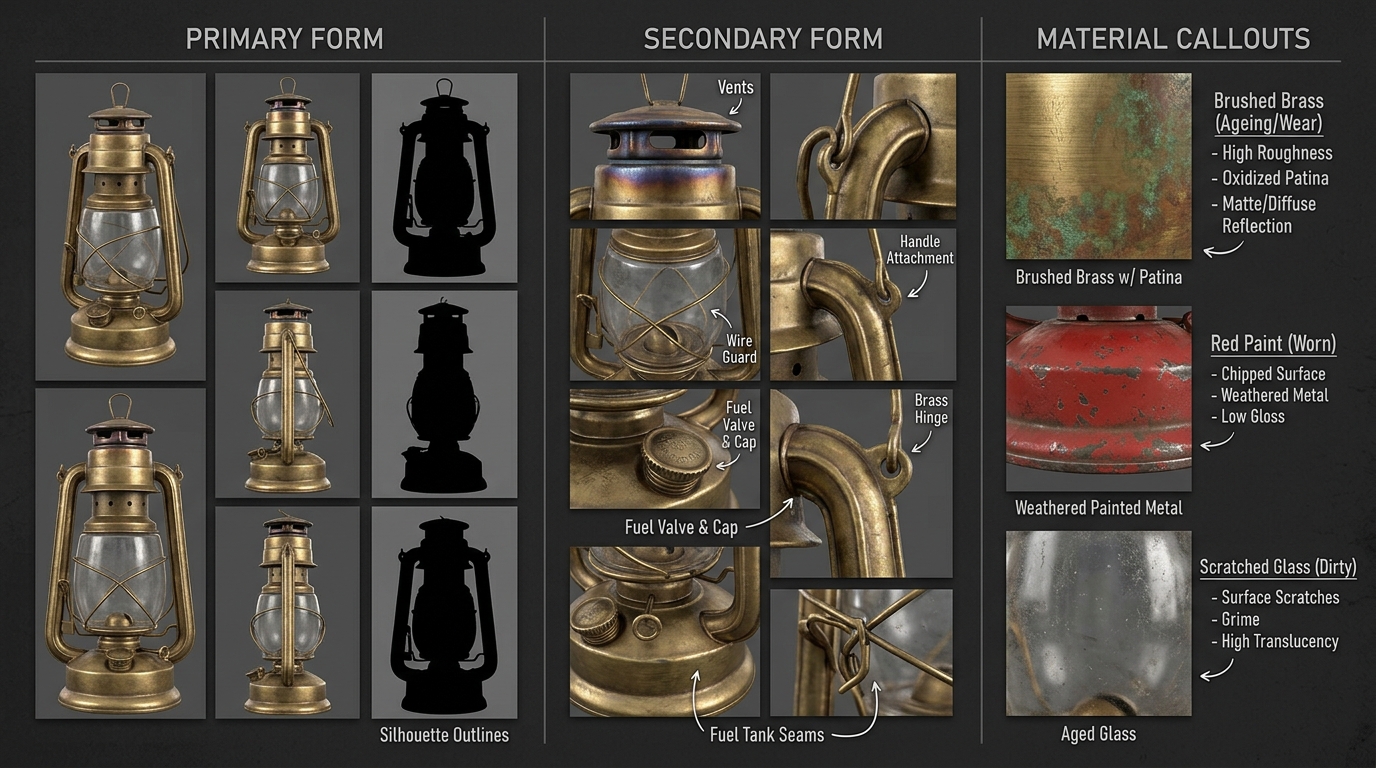
A board that’s just forty images dumped in a grid doesn’t help you as much as one that’s organized by what each image is actually informing. Three useful categories:
- Primary form: The big, overall silhouette. What is this object’s basic shape and proportion, before any detail exists. If your prop is a lantern, this is photos showing the overall lantern shape from a few angles.
- Secondary form: The features sitting on top of the primary shape: handles, vents, seams, panel lines, hinges, ridges. These are the details that make a shape specific rather than generic.
- Material callouts: What things are actually made of, and how that material behaves. Worn brass looks different from painted steel, which looks different from scratched plastic. This is the layer people skip and it’s the layer that makes a render convincing.
Group your board into these three zones, roughly, even if the boundaries blur a little. A board organized this way answers a specific question at a glance instead of making you scroll through everything every time.
Building your board in Canva
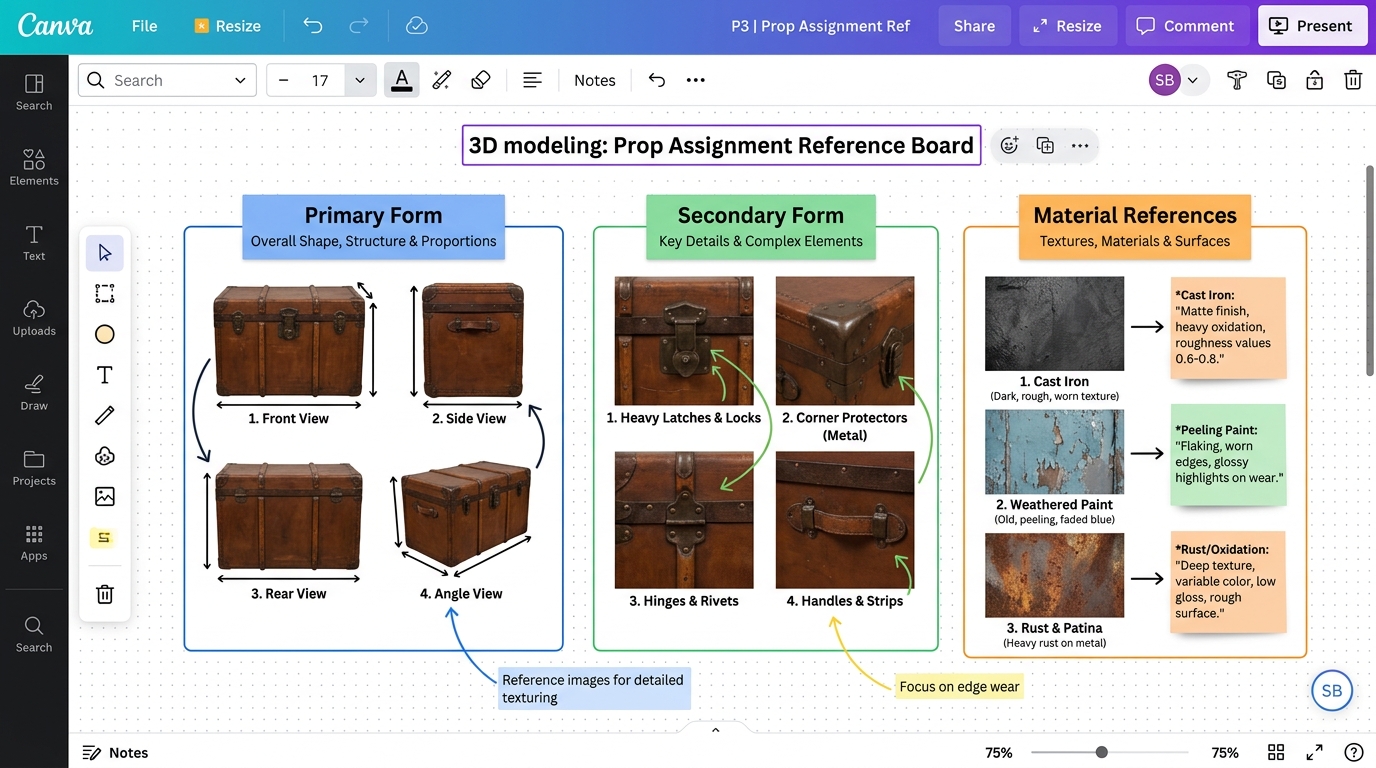
You already have a Canva account, so that’s the tool for this class. Open a blank design, pick a large canvas (a “Whiteboard” template works well since it isn’t locked to a fixed page shape), and build three labeled zones: Primary Form, Secondary Form, and Material.
Drag images into each zone. Canva can pull directly from a web image search inside the editor, or you can upload photos you’ve saved. Resize freely, and add a text box under each material image with your callout.
That’s the whole workflow, and it’s enough to do everything this assignment asks for.
The tool the industry actually uses
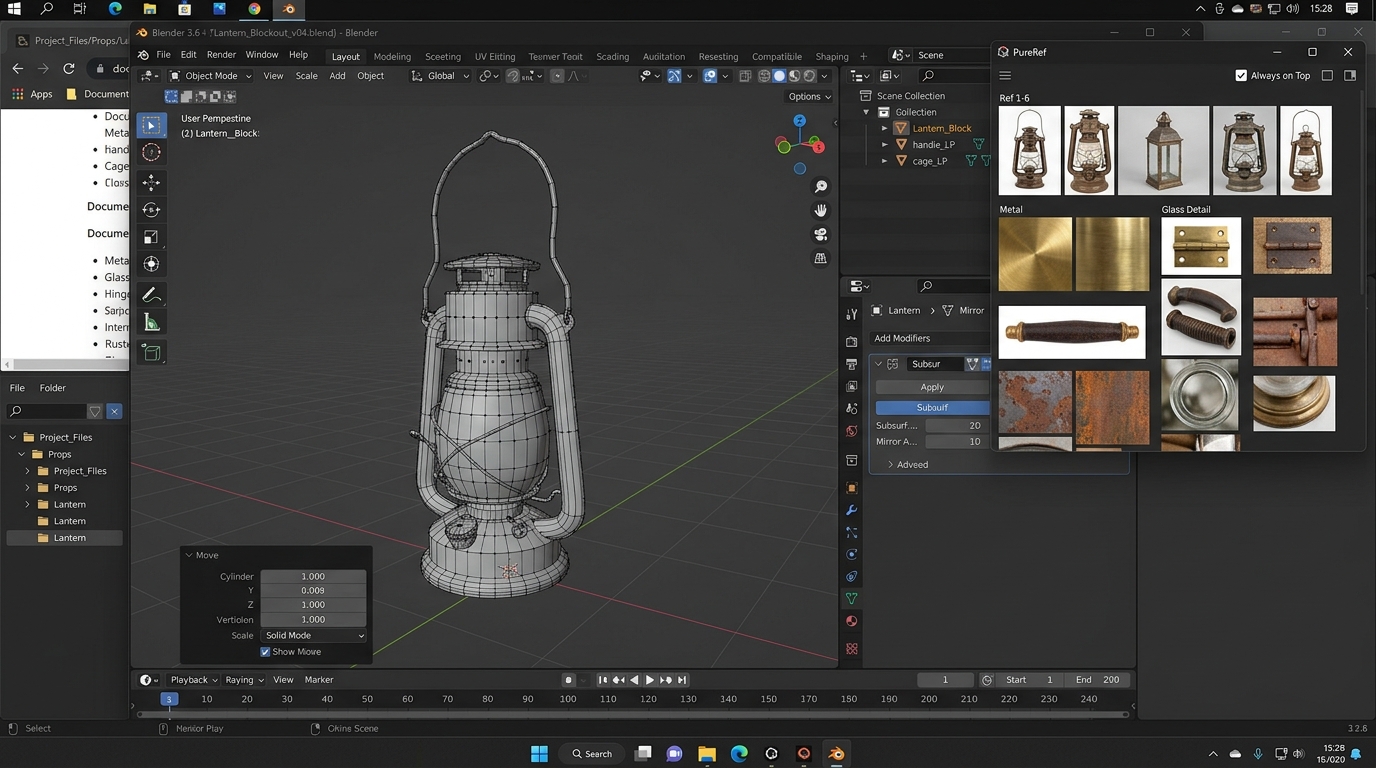
Once you’re gathering reference constantly, for every project, you’ll want something built specifically for it. That tool is PureRef, free, and standard across the industry from students to professional studios.
What it does that a slide tool doesn’t:
- Infinite canvas: Never runs out of room, at any zoom level.
- Drag anything in, instantly: From a folder, browser, or screenshot.
- Always on top: The board floats above your other windows, so you glance at reference without alt-tabbing away from Blender.
- One file: A
.purfile embeds every image, so the whole board travels as a single file.
That last point, floating above your modeling software while you work, is the thing a slide-based board can’t do. It’s worth installing once you’re building reference boards regularly, and it’s free.
This unit, use Canva. If you want to try PureRef, it’s a quick install and I’m glad to show you.
Industry reference boards & artist credits
Studying how working production artists set up their boards shows how research directly influences 3D asset quality:
- Ilia Artsybachev — Victorian Banquet Oil Lamp “Caryatides”: 3D game prop artist Ilia Artsybachev compiled an extensive PureRef board of Victorian banquet lamps, glass chimney fittings, and bronze patina statues to guide Maya modeling and Substance Painter texturing.
- Michael Collingwood — Prop Reference Boards & Technical Breakdowns: Hard-surface prop artist showcasing how dedicated reference sheets isolate weld seams, stamped factory markings, and real-world metal wear patterns.
- Pablo Muñoz Gómez (Pablander) — The Art of Gathering Reference: Digital sculptor and educator demonstrating infinite-canvas reference management, grouping techniques, and live annotations for 3D modeling pipelines.
Gathering with intent
Random image searches produce a random board. A few habits that produce a useful one, whichever tool you use:
- Search specifically: Not “lantern,” but “brass camping lantern hinge detail” or “lantern handle wear.” The more specific the search, the more useful the result.
- Get multiple angles of the same object where you can: A three-quarter view alone hides how a form actually reads from the side.
- Include at least one real photo for every material you plan to use: Concept art is useful for form; photos are what tell you the truth about how a material actually catches light.
- Keep gathering references while you work, not just before: If you hit a problem mid-model, that’s a reason to add reference, not push through blind.
Reading a reference like an artist
Look past what an object is and notice how it’s built. A lantern’s handle isn’t just “a handle”: is it a simple bent rod, or does it have a wrapped grip? Does the body taper or stay a constant width? Where exactly does the glass panel meet the frame? Those are the questions your primary and secondary form reference should be answering before you open Blender.
Quick Check
A student's reference board has fifteen photos of lanterns, all roughly the same three-quarter angle, and nothing showing what the metal looks like up close. What's missing?
- A. More photos of lanterns from the same angle
- B. Material callouts and a variety of viewing angles
- C. Nothing, fifteen references is already plenty
- D. Concept art instead of photos
Show answer
Terms
- Reference board
- Primary form
- Secondary form
- Material callout
- PureRef
- Always on top
Next
- Reference Board & Art Direction Study — build your Canva reference board for your midterm prop
- Primitive Modeling (
BLND-103) — block out primary and secondary forms in 3D